

Thursday, November 25, 2010

Monday, November 15, 2010
Kodak Capture Pro Software Care Kits
Maximize your software investment
Get the most value from your Kodak Capture Pro Software installation with the latest upgrades and features, migrations to new job setups and applications, and fast access to support.
Optimize your productivity with support from our software experts
Kodak Capture Pro Software gives you a host of features that help maximize your scanning throughput and productivity. Now complement those features with ongoing software support that can help your scanning run smoothly throughout the year, even with challenging production demands. When you purchase any Capture Pro Software, you are entitled to CD replacement in case of loss.
Here’s what you’re entitled to with a Care Kit for Kodak Capture Pro Software
• New upgrades and features as available
• Basic migration to new job setups and applications
• Software Maintenance Releases
• Troubleshooting and problem isolation
• Phone, fax, email, and remote support
• Patches, if needed
• Assistance with driver compatibility issues
• And other services that help enhance the value of your Capture Pro Software
Quick, responsive help
Kodak software specialist will answer your scanner operator’s questions and help troubleshoot and isolate problems so they can be resolved quickly. Your call will be automatically tracked and escalated if necessary to help ensure
timely resolution. This often eliminates the need for further service. And, support
is available by phone, fax, email, and remote diagnostics—whichever works best for you.
New releases and patches are part of your Kodak Care Kit. This ensures your system is up to date with the latest improvements as they are developed. Running the most current software version can enhance your productivity while you work more efficiently and avoid compatibility problems.
Kodak experience and expertise saves you time.With over 100 years of service and support experience, Kodak offers the right combination of quality service, highly skilled people, and state-of-the-art technology. And it’s available to you to help your scanning run smoothly.
Extend your software investment with additional services
Kodak offers optional installation and operator training so you are scanning optimally from the start. And, ask about Kodak Professional Services—a complete solution for startup assistance, training, and application development support.
Kodak Care Kits
Kodak Care Kits enhance and extend your protection. A Kodak Care Kit includes information on how to activate your coverage, how to call for service, and the terms and conditions of the service purchased. By purchasing a Kodak Care Kit, you can ensure you are always current with the latest version.
Please call 1st Run Computer Services at : (212)-779-0800 for more information, or visit http://www.1strunshoponline.com/software_kodak.aspx
Get the most value from your Kodak Capture Pro Software installation with the latest upgrades and features, migrations to new job setups and applications, and fast access to support.
Optimize your productivity with support from our software experts
Kodak Capture Pro Software gives you a host of features that help maximize your scanning throughput and productivity. Now complement those features with ongoing software support that can help your scanning run smoothly throughout the year, even with challenging production demands. When you purchase any Capture Pro Software, you are entitled to CD replacement in case of loss.
Here’s what you’re entitled to with a Care Kit for Kodak Capture Pro Software
• New upgrades and features as available
• Basic migration to new job setups and applications
• Software Maintenance Releases
• Troubleshooting and problem isolation
• Phone, fax, email, and remote support
• Patches, if needed
• Assistance with driver compatibility issues
• And other services that help enhance the value of your Capture Pro Software
Quick, responsive help
Kodak software specialist will answer your scanner operator’s questions and help troubleshoot and isolate problems so they can be resolved quickly. Your call will be automatically tracked and escalated if necessary to help ensure
timely resolution. This often eliminates the need for further service. And, support
is available by phone, fax, email, and remote diagnostics—whichever works best for you.
New releases and patches are part of your Kodak Care Kit. This ensures your system is up to date with the latest improvements as they are developed. Running the most current software version can enhance your productivity while you work more efficiently and avoid compatibility problems.
Kodak experience and expertise saves you time.With over 100 years of service and support experience, Kodak offers the right combination of quality service, highly skilled people, and state-of-the-art technology. And it’s available to you to help your scanning run smoothly.
Extend your software investment with additional services
Kodak offers optional installation and operator training so you are scanning optimally from the start. And, ask about Kodak Professional Services—a complete solution for startup assistance, training, and application development support.
Kodak Care Kits
Kodak Care Kits enhance and extend your protection. A Kodak Care Kit includes information on how to activate your coverage, how to call for service, and the terms and conditions of the service purchased. By purchasing a Kodak Care Kit, you can ensure you are always current with the latest version.
Please call 1st Run Computer Services at : (212)-779-0800 for more information, or visit http://www.1strunshoponline.com/software_kodak.aspx
Tuesday, November 2, 2010
New Canon imageFORMULA DR-6030C Departmental Scanner
Canon announced the release of the new imageFORMULA DR-6030C (item # 4624B002, MSRP $4495), as of November 3, 2010. The DR-6030C Departmental Scanner blends high speeds and reliable document handling with versatility and convenience. It provides comprehensive functionality in a desktop design that effectively delivers document capture benefits in any business application.
DR-6030C User Applications: The DR-6030C scanner is ideal for distributed scanning of high volumes of documents. At the front desk or in the back office, this scanner is well-suited for use at the departmental level. Government, financial services, healthcare, education, and other industries can benefit from its convenient design and its flexible, reliable document handling.
DR-6030C Highlighted Abilities and Advantages:
Rapid scanning speeds of up to 80 pages / 160 images per minute, in both color and black & white, and a 100-sheet Automatic Document Feeder, for maximum document throughput
Ultrasonic Double-Feed Detection and Rapid Recovery System for reliable paper handling
Ability to handle varied documents including thick documents, plastic ID cards, and driver licenses, and includes a Long Document Mode for handling up to 118” documents, for superior versatility
Small enough to fit on a desktop, quick access to frequently used settings, and the ability to handle batches of mixed documents, for easy, convenient use
Sophisticated imaging functions such as Three-Dimensional Color Correction and High-Speed Text Enhancement, for high image quality
Generation Green program participation, plus RoHS and Energy Star regulatory compliances, for an environmentally conscious hardware investment
DR-6030C replaces the imageFORMULA DR-5010C, which has been discontinued.
There is some remaining inventory of the DR-5010. However, supplies are very limited and orders will be fulfilled on a first come, first ship basis.
Call 1st Run Computer Services :(212) 779-0800
DR-6030C User Applications: The DR-6030C scanner is ideal for distributed scanning of high volumes of documents. At the front desk or in the back office, this scanner is well-suited for use at the departmental level. Government, financial services, healthcare, education, and other industries can benefit from its convenient design and its flexible, reliable document handling.
DR-6030C Highlighted Abilities and Advantages:
Rapid scanning speeds of up to 80 pages / 160 images per minute, in both color and black & white, and a 100-sheet Automatic Document Feeder, for maximum document throughput
Ultrasonic Double-Feed Detection and Rapid Recovery System for reliable paper handling
Ability to handle varied documents including thick documents, plastic ID cards, and driver licenses, and includes a Long Document Mode for handling up to 118” documents, for superior versatility
Small enough to fit on a desktop, quick access to frequently used settings, and the ability to handle batches of mixed documents, for easy, convenient use
Sophisticated imaging functions such as Three-Dimensional Color Correction and High-Speed Text Enhancement, for high image quality
Generation Green program participation, plus RoHS and Energy Star regulatory compliances, for an environmentally conscious hardware investment
DR-6030C replaces the imageFORMULA DR-5010C, which has been discontinued.
There is some remaining inventory of the DR-5010. However, supplies are very limited and orders will be fulfilled on a first come, first ship basis.
Call 1st Run Computer Services :(212) 779-0800
Monday, November 1, 2010
Wednesday, October 13, 2010
Wednesday, October 6, 2010
Scanner Review: Fujitsu ScanSnap S1300
Contracts? Receipts? Bills? Business Cards? Bring 'Em On
People say that you can't take it with you. But with its new ScanSnap S1300 scanner, Fujitsu is out to show the world that sometimes you can. Priced at $295, the latest addition to the company's line of computer peripherals lets you hit the road with a scanner that weighs about as much as a netbook -- 3.1 pounds -- but can scan eight double-sided pages in a minute and even offers a 10-page automatic document feeder (ADF).

At 11.2 by 3.9 by 3 inches, the S1300 is small enough that it doesn't just claim to be portable -- it actually is. Adding to its portability, furthermore, is the fact that you don't even need the supplied AC power adapter to hit the road with your ScanSnap: Instead, you can choose to use one USB port to power the device while using another to communicate with your computer. The downside to this is that there's a significant performance hit (as in twice the time per job) when powering the S1300 by USB. But given that there are times when it's just not feasible to get to an electric outlet, it's nice to have both options available.
Inside the box, you'll find the expected documentation, an AC cable/adapter, a USB data cable, a USB bus power cable, and the setup DVD with Windows and Mac applications for managing and viewing PDF and JPG files and scanned business cards. The scanner works with all current versions of Windows (from Win 2000 through both the 32- and 64-bit editions of Windows XP, Vista, and 7), as well as with Mac OS X 10.4, 10.5, and 10.6. I tested it with a desktop running 64-bit Windows 7.
Setup is a matter of installing the software, plugging in the scanner, and flipping open its lid to turn it on. From there, with a press of a button (you can't miss it -- it's big, it's blue, and it's the only one on the scanner), the documents that have been loaded in the ADF are scanned and the ScanSnap software comes up, asking how you want the job handled.
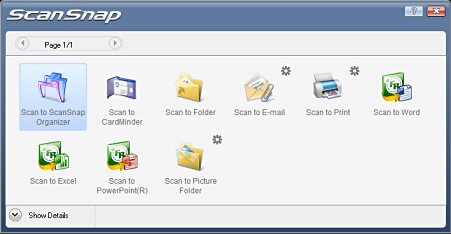
Options range from using the included CardMinder software to turn business cards into contacts to moving your scanned documents into folders, sending them as e-mail attachments, or importing them into Microsoft Word, Excel, or PowerPoint. Also useful is the ability to scan directly to a printer, letting you use the ScanSnap S1300 to make quick copies, as needed.

Paperless Productivity
The ScanSnap S1300 has an optical resolution of 600 by 600 dpi and offers scanning speeds of up to 8 double-sided pages per minute (albeit at its lowest quality setting). Does it match the speed or quality of a full-sized, flatbed document scanner? Nope, and not even Fujitsu would claim that it does. But considering that it's small and light enough to carry around with you, the performance and accuracy it can deliver is more than adequate.
Text and images alike were reproduced faithfully enough to satisfy any typical business user, even if they might not impress photographers or graphic artists. And while not perfect, the included ABBYY optical character recognition (OCR) software's ability to recognize text in documents was pretty good.
We encountered some unusual handling of nonstandard text such as company logos or marred text, particularly when scanning business cards. But generally speaking, text was handled fairly well, even if some corrections were needed before we let the CardMinder software move cards' information into our Microsoft Outlook contact list.
One area where the S1300 might be thought to come up short is its lack of TWAIN or WIA compliance. This means that you'll be limited to using the included software and won't be able to scan directly into other applications you might be used to using such as Adobe Photoshop. But given how many file formats and options Fujitsu makes available and that software is provided for Windows and Mac users alike, this isn't exactly a fatal flaw. TWAIN or WIA functionality would have been nice, of course. But if the job is getting done, you're probably not going to worry about which specific tools are being used to do it.
Obviously, the ScanSnap isn't for someone who wants a desktop scanner for daily work with photos. Nor is it the cheapest choice for the business traveler who just wants to scan in a few business cards and receipts. But if you're looking for a portable scanner that crams so many features into so small a package, you'll have a hard time finding one better than the Fujitsu ScanSnap S1300.

On a 5-star scale:
Features: *****
Performance: *****
Value: *****
Total: 15 out of 15
more reviews @ http://www.hardwarecentral.com
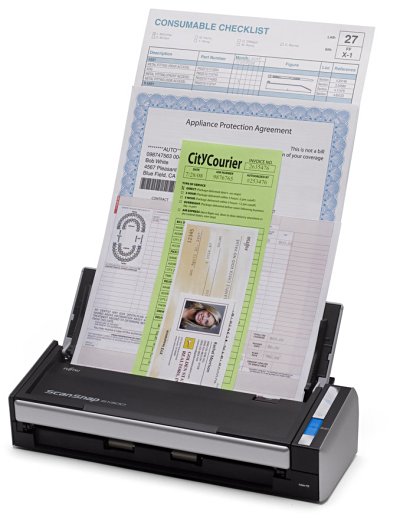
People say that you can't take it with you. But with its new ScanSnap S1300 scanner, Fujitsu is out to show the world that sometimes you can. Priced at $295, the latest addition to the company's line of computer peripherals lets you hit the road with a scanner that weighs about as much as a netbook -- 3.1 pounds -- but can scan eight double-sided pages in a minute and even offers a 10-page automatic document feeder (ADF).

At 11.2 by 3.9 by 3 inches, the S1300 is small enough that it doesn't just claim to be portable -- it actually is. Adding to its portability, furthermore, is the fact that you don't even need the supplied AC power adapter to hit the road with your ScanSnap: Instead, you can choose to use one USB port to power the device while using another to communicate with your computer. The downside to this is that there's a significant performance hit (as in twice the time per job) when powering the S1300 by USB. But given that there are times when it's just not feasible to get to an electric outlet, it's nice to have both options available.
Inside the box, you'll find the expected documentation, an AC cable/adapter, a USB data cable, a USB bus power cable, and the setup DVD with Windows and Mac applications for managing and viewing PDF and JPG files and scanned business cards. The scanner works with all current versions of Windows (from Win 2000 through both the 32- and 64-bit editions of Windows XP, Vista, and 7), as well as with Mac OS X 10.4, 10.5, and 10.6. I tested it with a desktop running 64-bit Windows 7.
Setup is a matter of installing the software, plugging in the scanner, and flipping open its lid to turn it on. From there, with a press of a button (you can't miss it -- it's big, it's blue, and it's the only one on the scanner), the documents that have been loaded in the ADF are scanned and the ScanSnap software comes up, asking how you want the job handled.
Options range from using the included CardMinder software to turn business cards into contacts to moving your scanned documents into folders, sending them as e-mail attachments, or importing them into Microsoft Word, Excel, or PowerPoint. Also useful is the ability to scan directly to a printer, letting you use the ScanSnap S1300 to make quick copies, as needed.
Paperless Productivity
The ScanSnap S1300 has an optical resolution of 600 by 600 dpi and offers scanning speeds of up to 8 double-sided pages per minute (albeit at its lowest quality setting). Does it match the speed or quality of a full-sized, flatbed document scanner? Nope, and not even Fujitsu would claim that it does. But considering that it's small and light enough to carry around with you, the performance and accuracy it can deliver is more than adequate.
Text and images alike were reproduced faithfully enough to satisfy any typical business user, even if they might not impress photographers or graphic artists. And while not perfect, the included ABBYY optical character recognition (OCR) software's ability to recognize text in documents was pretty good.
We encountered some unusual handling of nonstandard text such as company logos or marred text, particularly when scanning business cards. But generally speaking, text was handled fairly well, even if some corrections were needed before we let the CardMinder software move cards' information into our Microsoft Outlook contact list.
One area where the S1300 might be thought to come up short is its lack of TWAIN or WIA compliance. This means that you'll be limited to using the included software and won't be able to scan directly into other applications you might be used to using such as Adobe Photoshop. But given how many file formats and options Fujitsu makes available and that software is provided for Windows and Mac users alike, this isn't exactly a fatal flaw. TWAIN or WIA functionality would have been nice, of course. But if the job is getting done, you're probably not going to worry about which specific tools are being used to do it.
Obviously, the ScanSnap isn't for someone who wants a desktop scanner for daily work with photos. Nor is it the cheapest choice for the business traveler who just wants to scan in a few business cards and receipts. But if you're looking for a portable scanner that crams so many features into so small a package, you'll have a hard time finding one better than the Fujitsu ScanSnap S1300.
On a 5-star scale:
Features: *****
Performance: *****
Value: *****
Total: 15 out of 15
more reviews @ http://www.hardwarecentral.com
Thursday, September 30, 2010
Scansnap Community
Does ScanSnap create multi-page PDFs or single page PDFs?
The Fujitsu ScanSnap creates both single and multi-page PDFs. As a matter of fact, you can control exactly what you want to do by setting your ScanSnap to do single page PDFs, multiple page PDFs or set it up to create multiple page PDFs for every X number of documents you scan.
Scanning a group of documents that is bigger than the capacity of your ScanSnap ADF
Click on the ScanSnap icon in your system tray to open the ScanSnap Manager. Continue by clicking on the “Scanning” tab within the ScanSnap Manager. Then check the “Continue scanning after current scan is finished” box.
Prep Paper for Better Performance
Preparing your paper for scanning is just as important as keeping your ScanSnap clean, so we created this short three step primer on paper prep.
1. ‘The Fan’ – Some double feeds can be caused by paper that is too clean, or ‘copier fresh’. In this instance, the pages are typically the same size, wrinkle free and have little space or air between pages. The cure is simple; fan the pages to eliminate any static electricity and loosen the stack.
2. ‘The Taper’ – When a large stack of paper is scanned, the additional weight of the stack creates more pressure on the front pages and can cause double feeds. Try this – taper, or ‘stair step’ the pages so that the leading edge of the first page is slightly ahead of the second page and the second page is slightly ahead of the third page and so on… Resist the temptation of straightening the edges of the stack on a desktop, table or other flat surface; that flat edge could be the problem. Stack the tapered batch of documents in the feeder with the leading edge of the first page as page number one, and you will be ready to scan the large stack.
Visit http://scansnapcommunity.com for ScanSnap Tips and lot more...
The Fujitsu ScanSnap creates both single and multi-page PDFs. As a matter of fact, you can control exactly what you want to do by setting your ScanSnap to do single page PDFs, multiple page PDFs or set it up to create multiple page PDFs for every X number of documents you scan.
Scanning a group of documents that is bigger than the capacity of your ScanSnap ADF
Click on the ScanSnap icon in your system tray to open the ScanSnap Manager. Continue by clicking on the “Scanning” tab within the ScanSnap Manager. Then check the “Continue scanning after current scan is finished” box.
Prep Paper for Better Performance
Preparing your paper for scanning is just as important as keeping your ScanSnap clean, so we created this short three step primer on paper prep.
1. ‘The Fan’ – Some double feeds can be caused by paper that is too clean, or ‘copier fresh’. In this instance, the pages are typically the same size, wrinkle free and have little space or air between pages. The cure is simple; fan the pages to eliminate any static electricity and loosen the stack.
2. ‘The Taper’ – When a large stack of paper is scanned, the additional weight of the stack creates more pressure on the front pages and can cause double feeds. Try this – taper, or ‘stair step’ the pages so that the leading edge of the first page is slightly ahead of the second page and the second page is slightly ahead of the third page and so on… Resist the temptation of straightening the edges of the stack on a desktop, table or other flat surface; that flat edge could be the problem. Stack the tapered batch of documents in the feeder with the leading edge of the first page as page number one, and you will be ready to scan the large stack.
Visit http://scansnapcommunity.com for ScanSnap Tips and lot more...
Subscribe to:
Posts (Atom)